Customers of Shopify Standard Stores
Welcome to TaxWisp, your solution for seamless tax exemption during the checkout process. This guide will help customers of Shopify Standard stores (stores in Shopify Basic, Grow and Advanced plans) to understand how to claim tax-exempt status for your purchases and navigate the features offered by the app.
Self Sign-In and Registration
Before accessing TaxWisp and proceeding for the tax exemption, make sure you have registered as a customer to the Shopify Store.
- If you are accessing TaxWisp for the first time, you will need to sign up first with the store.
- Fill in the required information, and create your account.
- Once you are logged in through your account, you can proceed with TaxWisp for claiming the tax exemptions during checkout.
Accessing TaxWisp
To access TaxWisp, visit the online storefront of the Shopify store.
-
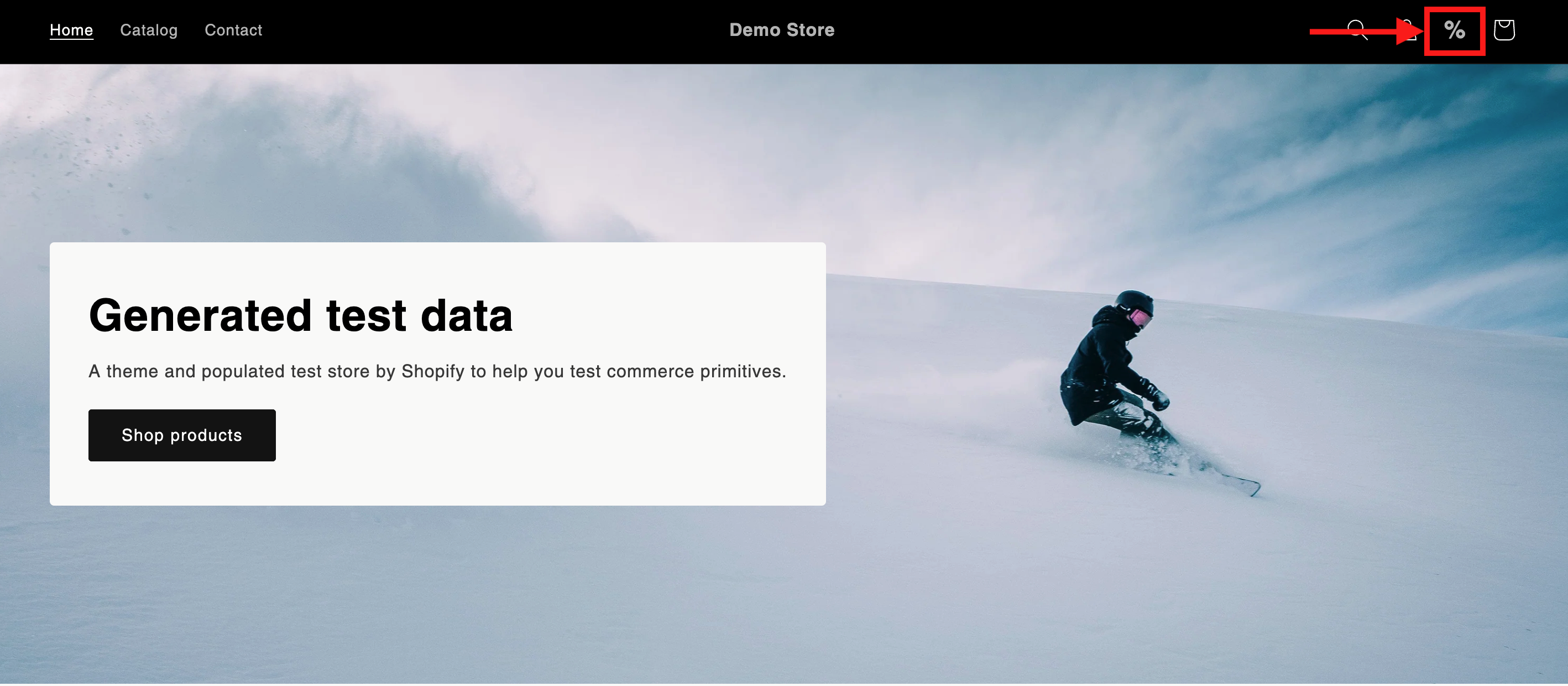
You can navigate to the TaxWisp Dashboard by clicking the **TaxWisp icon **%**** in the store’s header navigation to request tax exemption. You must be registered as a customer to the store to access the TaxWisp dashboard.
-
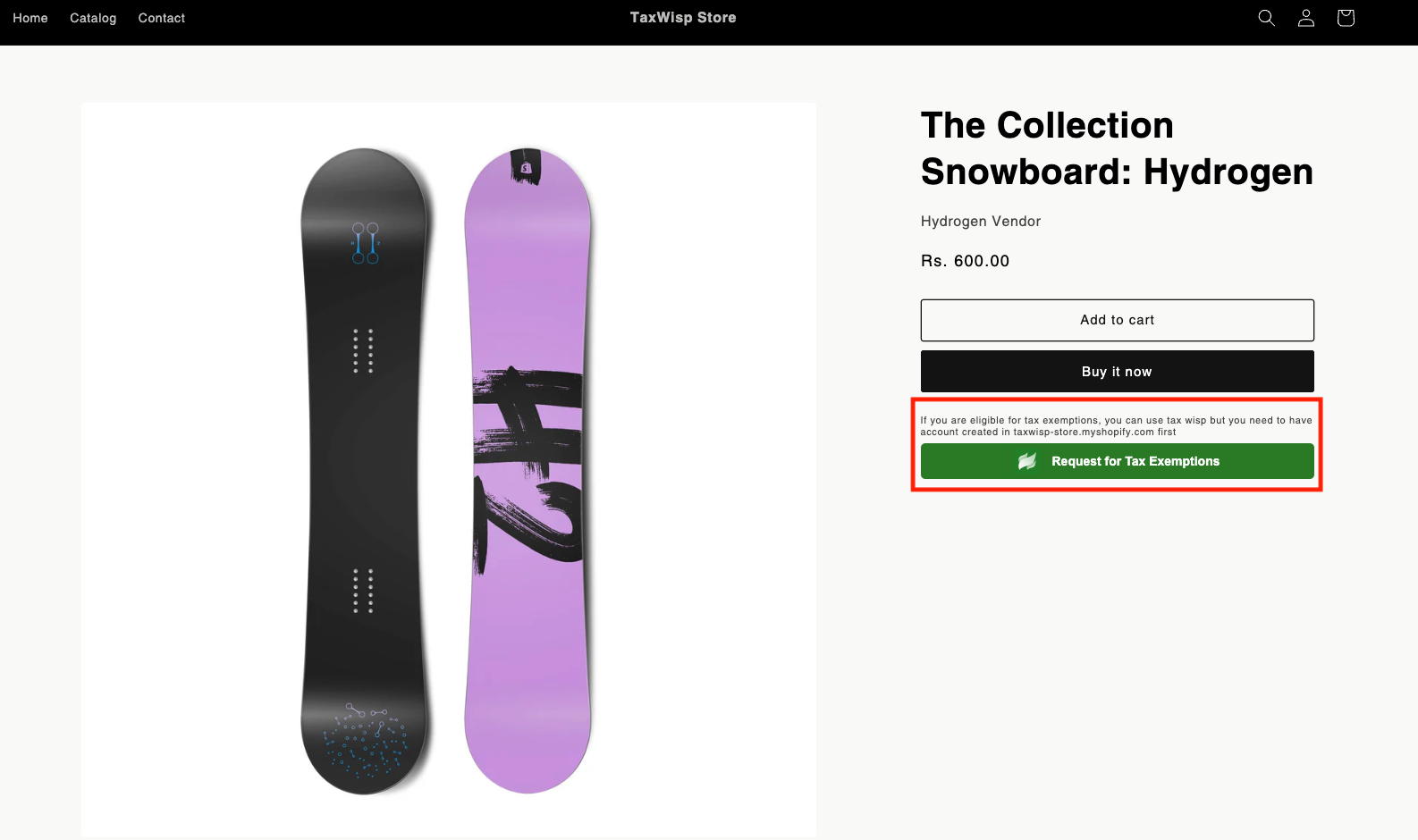
Alternatively, you can access TaxWisp from the Product Page of the Shopify store. You’ll see a Request for Tax Exemption button on the product page and request for tax exemptions directly by clicking on it.
-
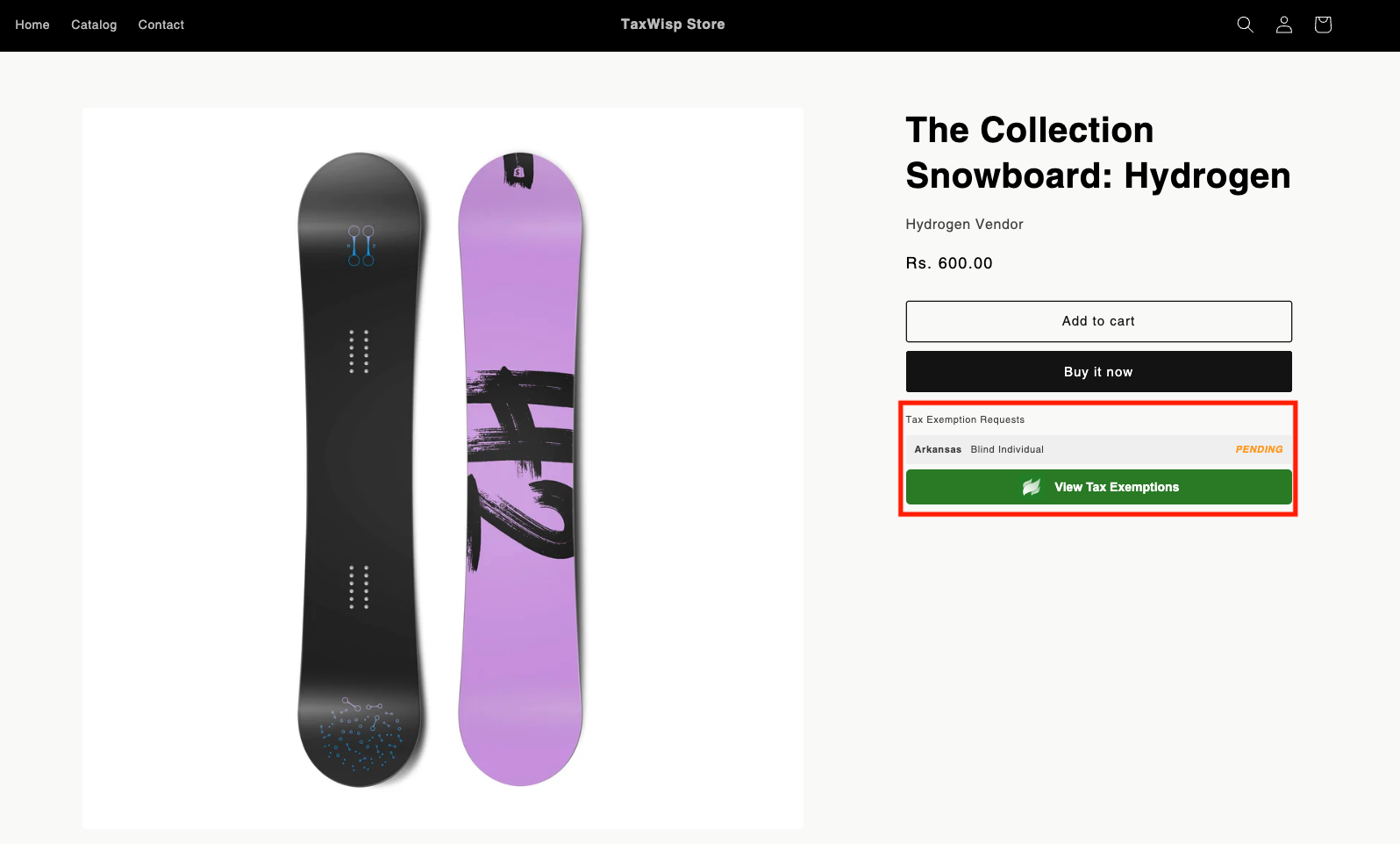
Once you have submitted the tax exemption request, your tax exemption request on pending status will be reflected on the product page itself. You can view your tax exemptions directly through TaxWisp by clicking on View Tax Exemptions button.
-
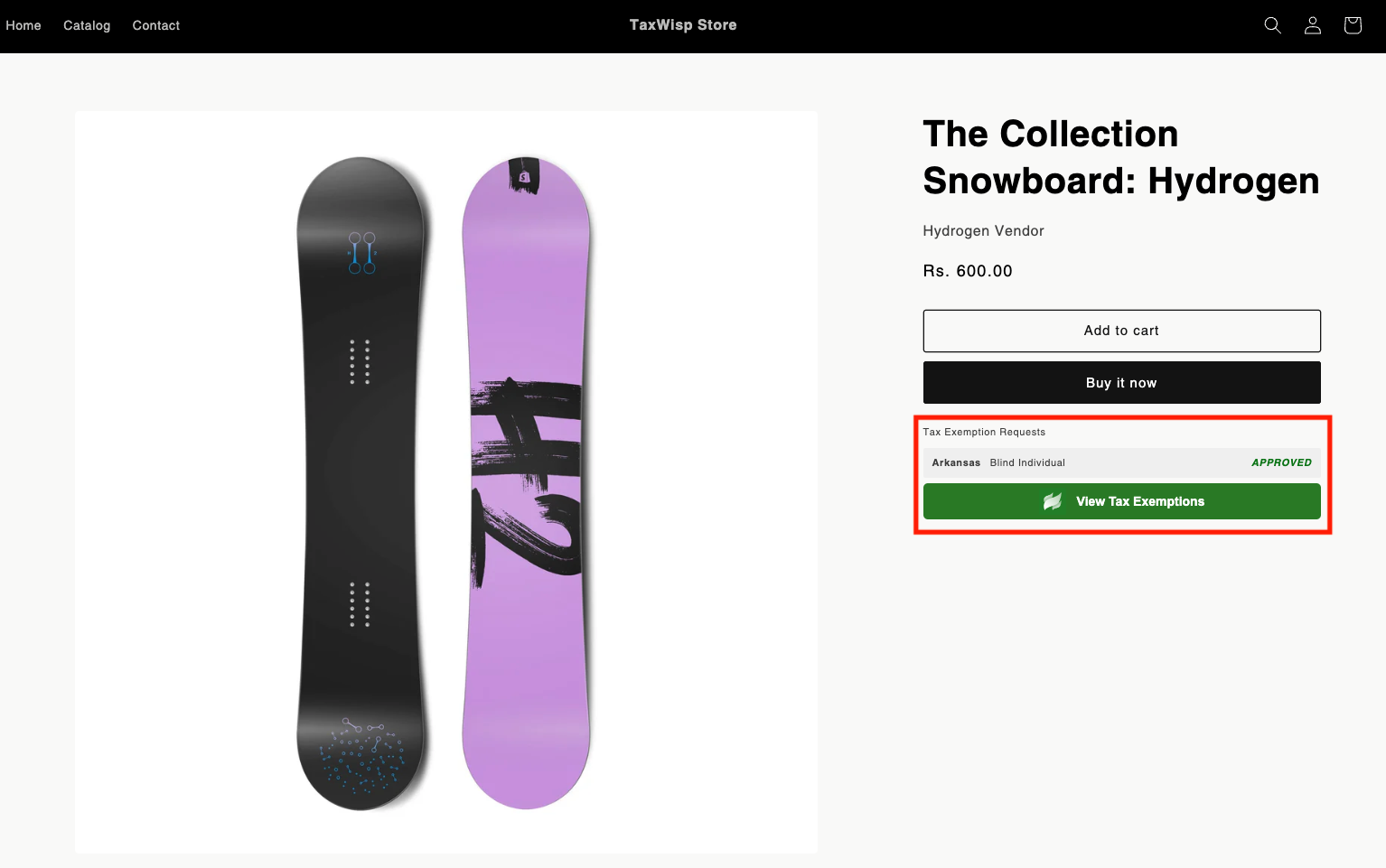
When the tax exemption request gets approved by the Store, then your tax exemption request on approved status will be reflected. You'll be now exempted from tax and your orders will be processed tax-free.
 tip
tipIf the store has placed the TaxWisp extension on a different page or section instead of the Product Page, search for the Request for Tax Exemption button to proceed with your tax exemption request.
-
Once you have registered, you can directly access TaxWisp using the customer dashboard as well, for further tax exemption processes.
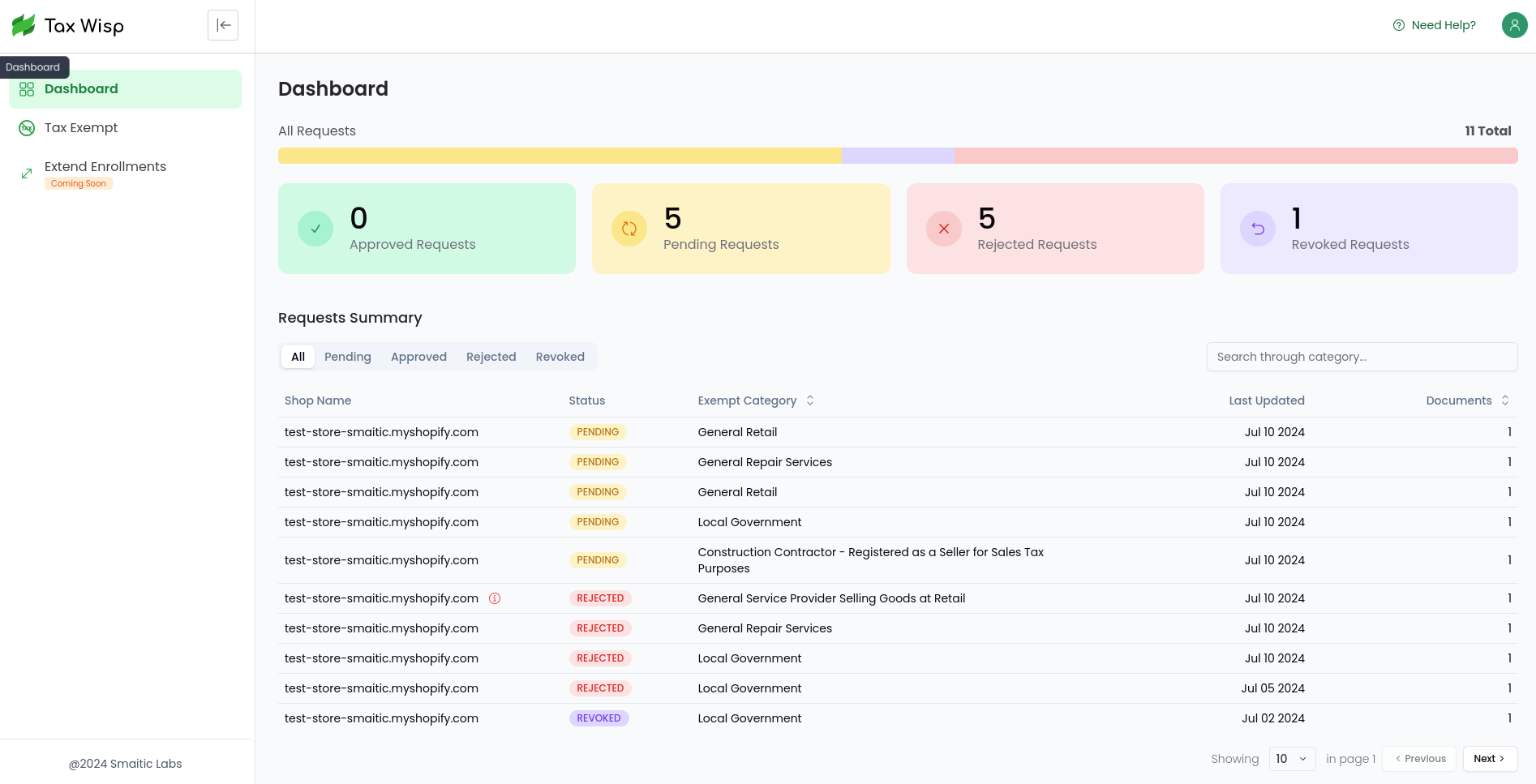
Claiming Sales Tax Exemption
You can request sales tax exemption from a store using TaxWisp if you qualify as a tax-exempt customer. Depending on how the merchant has configured TaxWisp, your experience may vary slightly, but the information required to verify your exemption remains the same.
Where Can You Submit Your Request?
Merchants can configure where customers submit their tax exemption requests.
- Online Storefront – Complete your tax exemption request directly on the merchant's website without leaving the store.
- TaxWisp Customer Portal – Some merchants may redirect you to the TaxWisp Customer Portal, where you can submit your request, upload documents, and manage your exemption requests.
Regardless of the submission method, your request will be securely submitted to the merchant for review.
How Do You Submit Your Request?
On the tax exemption request page, you'll be asked to provide the information required to verify your tax-exempt status. This typically includes:
- Exemption ID (if applicable)
- Tax Jurisdiction (State)
- Tax Exemption Category
- Supporting exemption certificate or other required documents
The exact submission experience depends on the merchant's TaxWisp subscription and configuration.
Requesting Tax Exemption on Stores with TaxWisp Basic Plan
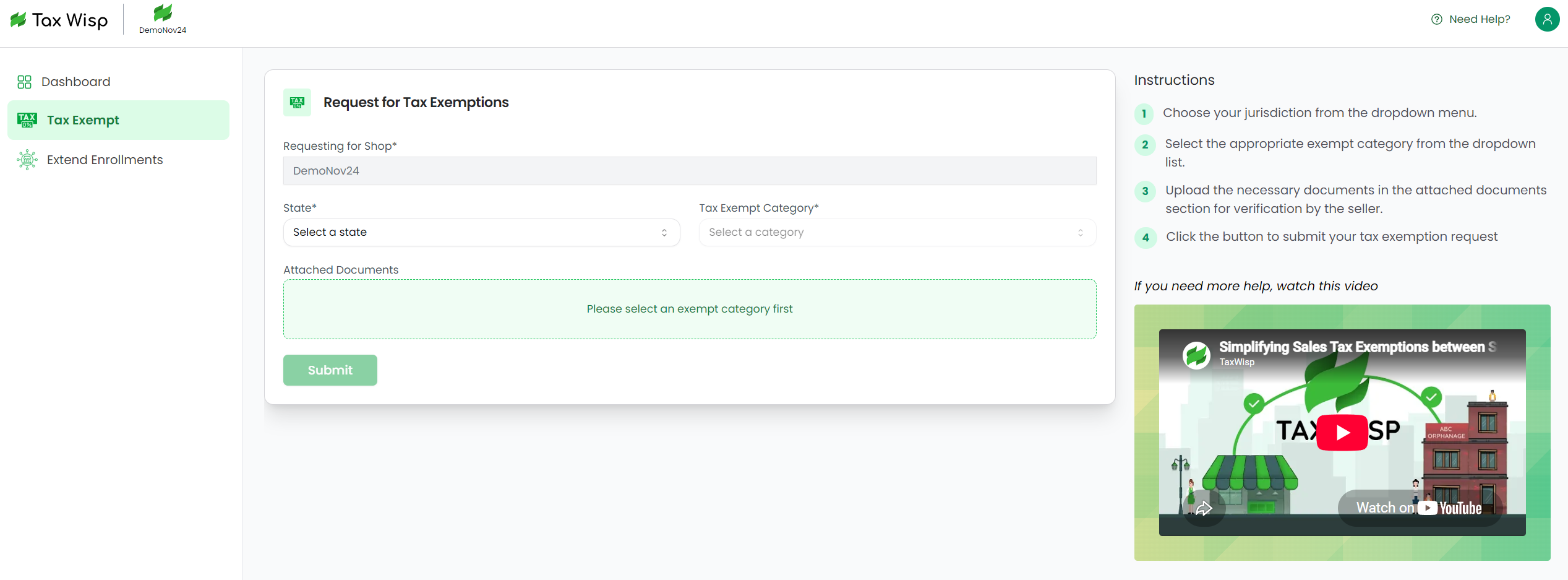
Stores using the TaxWisp Basic Plan provide a traditional tax exemption request form.
You'll manually enter your exemption details, select the appropriate exemption category and jurisdiction, and upload your exemption certificate along with any supporting documents.
Please ensure that all information is accurate and that the uploaded documents are valid and clearly readable before submitting your request.
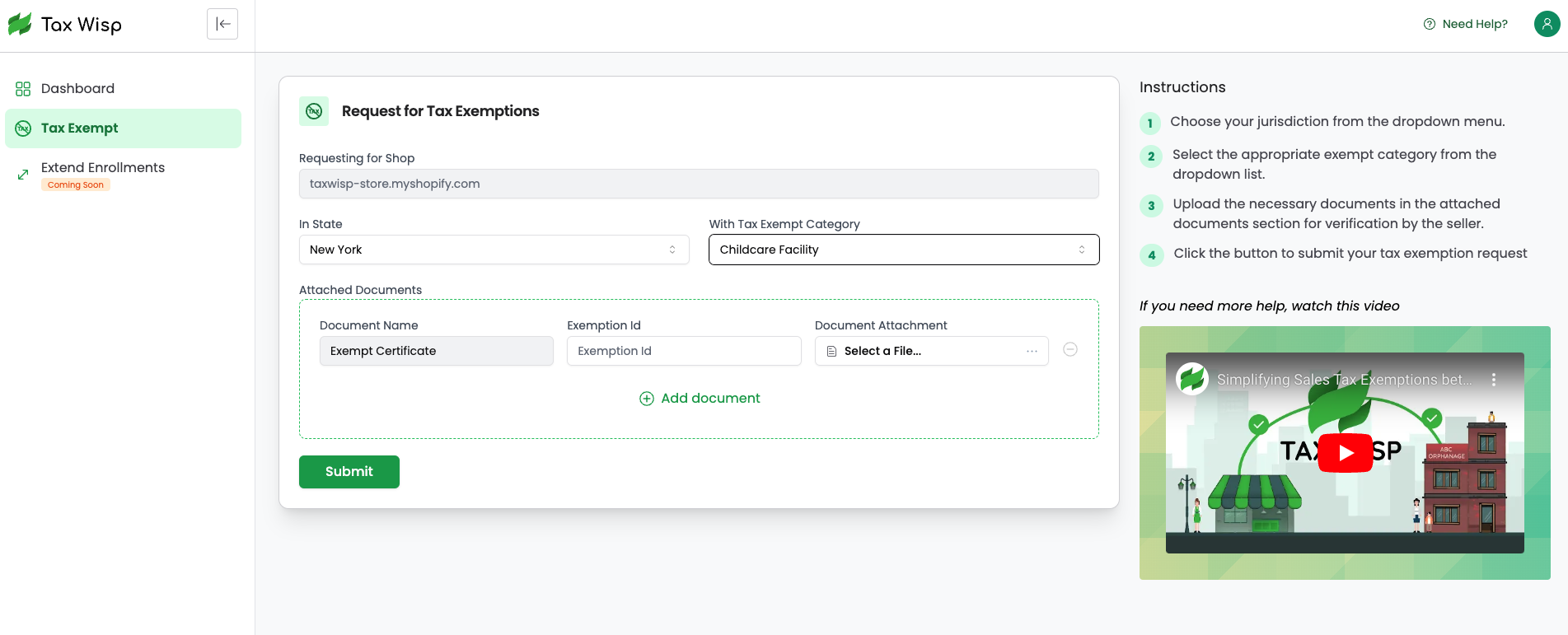
Requesting Tax Exemption on Stores with TaxWisp Standard or Premium Plans
Stores using the TaxWisp Standard or Premium plans may provide one of two submission experiences:
Traditional Form
Complete the exemption request by manually entering your exemption details and uploading the required exemption certificate.
Guided Recommendation Experience
Some merchants enable TaxWisp's Guided Recommendation experience. Instead of immediately displaying the request form, you'll answer a few simple questions about your organization and tax exemption eligibility.
Based on your responses, TaxWisp recommends the most appropriate exemption category before presenting the exemption request form. This helps reduce incorrect submissions and makes the process easier, especially for first-time applicants.
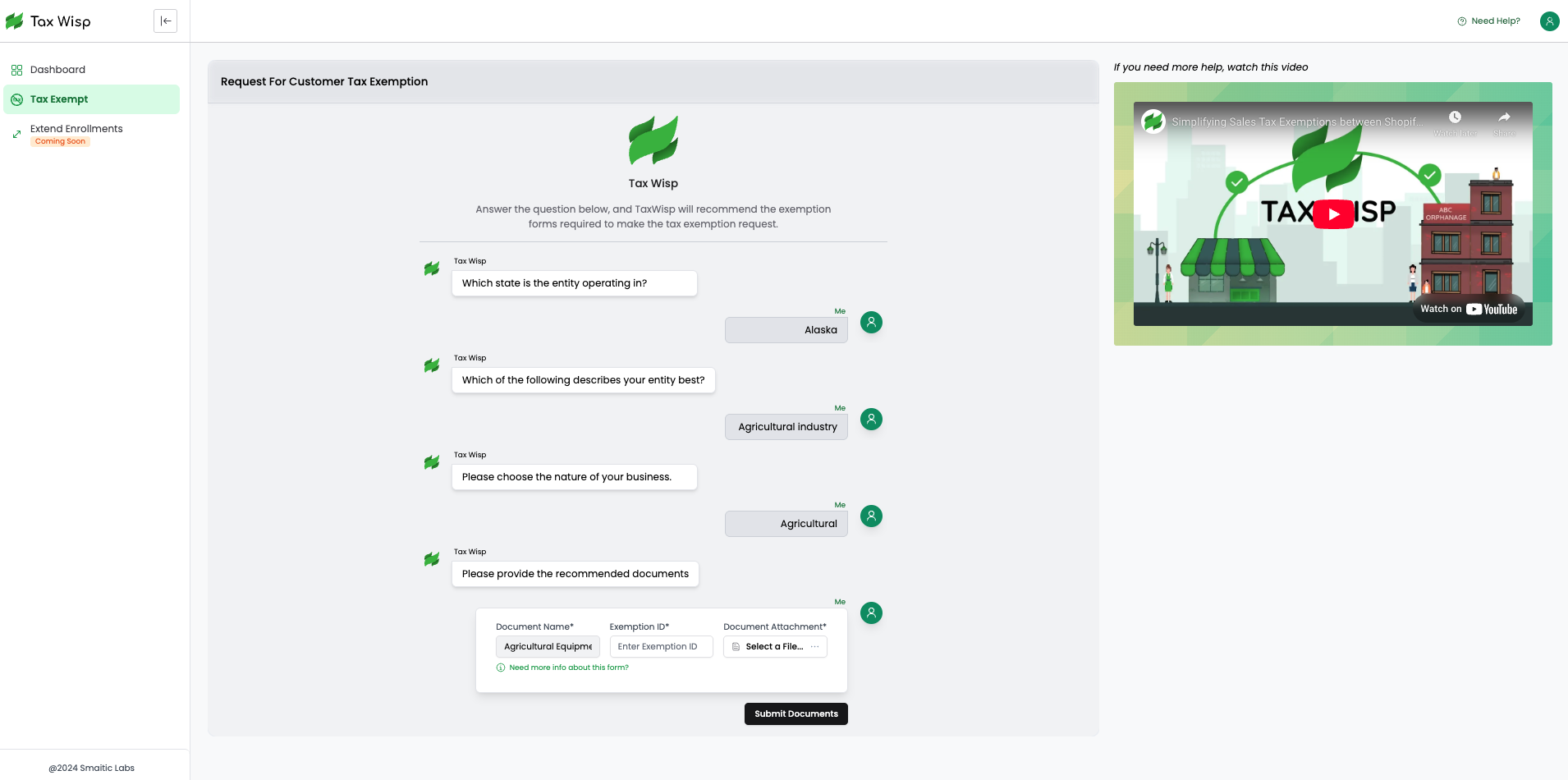
Once you've submitted your request, the merchant will review your exemption information and supporting documents. You'll receive email notifications as your request progresses and when it has been approved, rejected, or requires additional information.
If the merchant has enabled Auto Approval, eligible requests may be approved immediately after submission, allowing you to proceed with tax-exempt purchases without waiting for manual review. If the merchant uses Criteria-Based Auto Approval (Premium), your uploaded exemption certificate may first be validated before your request is automatically approved.
Uploading Tax Exemption Documents
If you need to upload tax exemption documents, such as certificates or declarations, follow these steps:
- Access the Tax Exemption Request form.
- Look for the document upload section on tax exemption request form and follow the on-screen prompts to attach your files.
- Supported file formats include .pdf, .jpg, .jpeg, and .png, with a maximum file size of 25 MB. Please ensure your documents meet these requirements before uploading.
- After uploading, simply submit your tax exemption request for review and processing.
Your documents will be securely stored and reviewed as part of your exemption claim.
Managing Tax Exemption Status
If you have already claimed tax exemption or want to check the status of your exemption, follow these steps:
-
Access the Tax Wisp interface during the checkout process or directly navigate to TaxWisp Dashboard.
-
Look for options to view or manage your tax exemption status.
-
Review the status of your tax exemption claim. This may include information about approval, rejection, revocation or pending review.
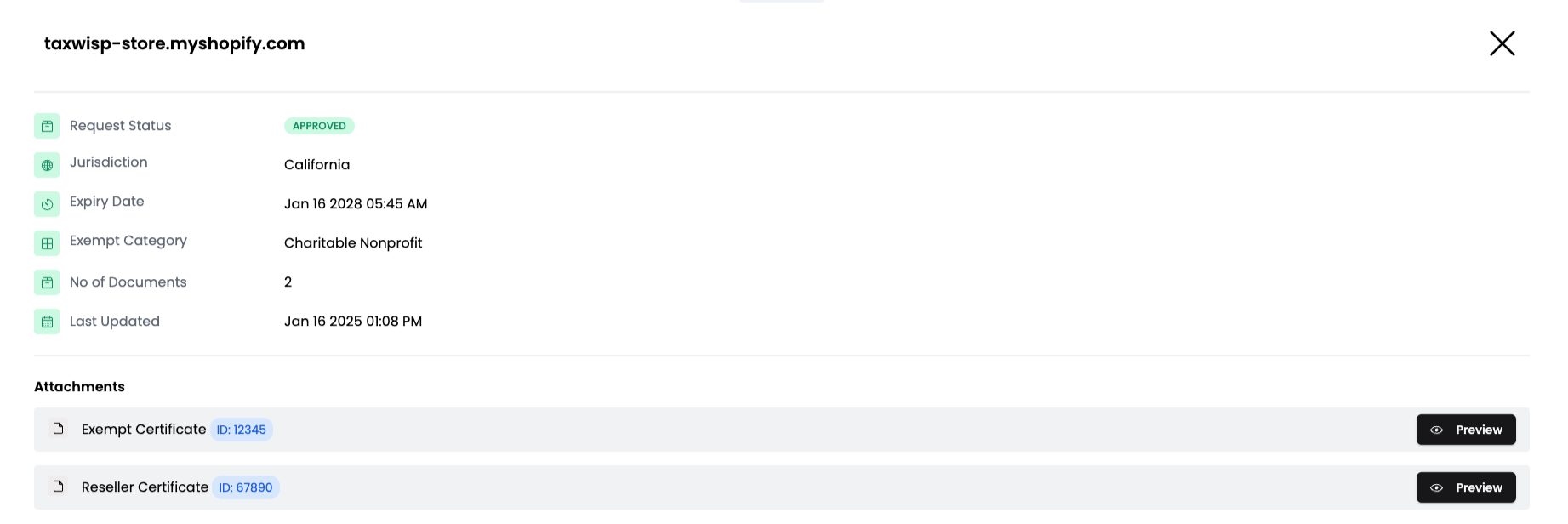
Extending Your Enrollment
The Extend Enrollment feature allows you to extend an existing active tax exemption to other participating stores that use TaxWisp.
Instead of submitting the same exemption details and documents separately to each store, you can select an existing active enrollment and request that it be extended to another eligible store and location.
This makes it easier to shop with multiple TaxWisp-enabled merchants while reducing repeated form submissions and document uploads.
Only participating stores and locations that are eligible for Extend Enrollment will appear in the available store list.
How to Extend Your Enrollment
The process includes three steps.
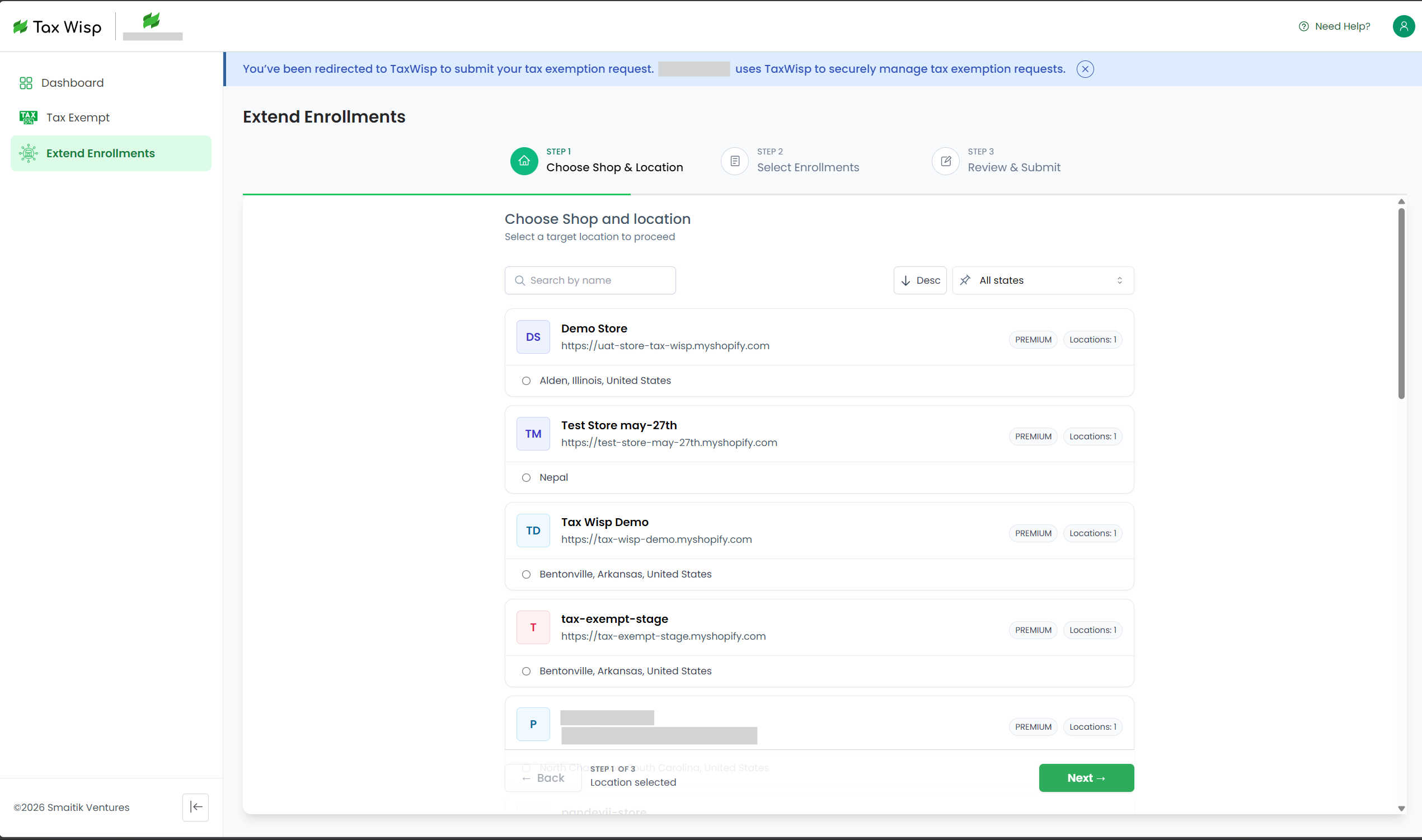
Step 1: Choose a Store and Location
Open Extend Enrollments from the TaxWisp Customer Portal.
You will see a list of participating stores and their available locations. You can:
- Search for a store by name.
- Filter stores by state.
- Review the available locations for each store.
- Select the store location where you want to extend your exemption.
After selecting a location, click Next.
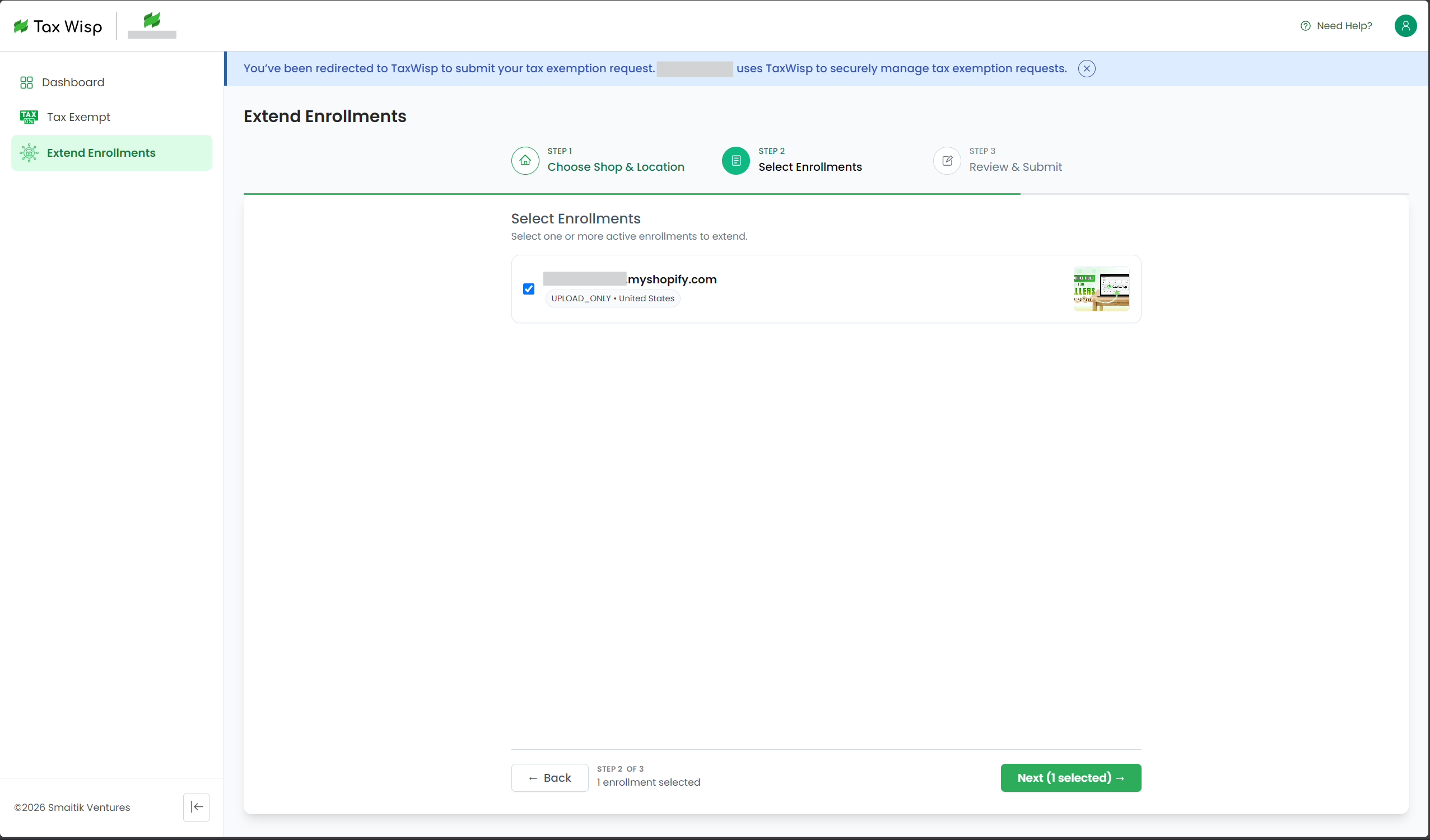
Step 2: Select Active Enrollments
Select one or more of your existing active enrollments that you want to extend to the chosen store and location.
Only eligible active enrollments will be available for selection.
After selecting the applicable enrollment or enrollments, continue to the next step.
Step 3: Review and Submit
Review the selected store, location, and active enrollments before submitting your request.
Confirm that the information is correct, then click Submit to send the enrollment extension request to the selected store.
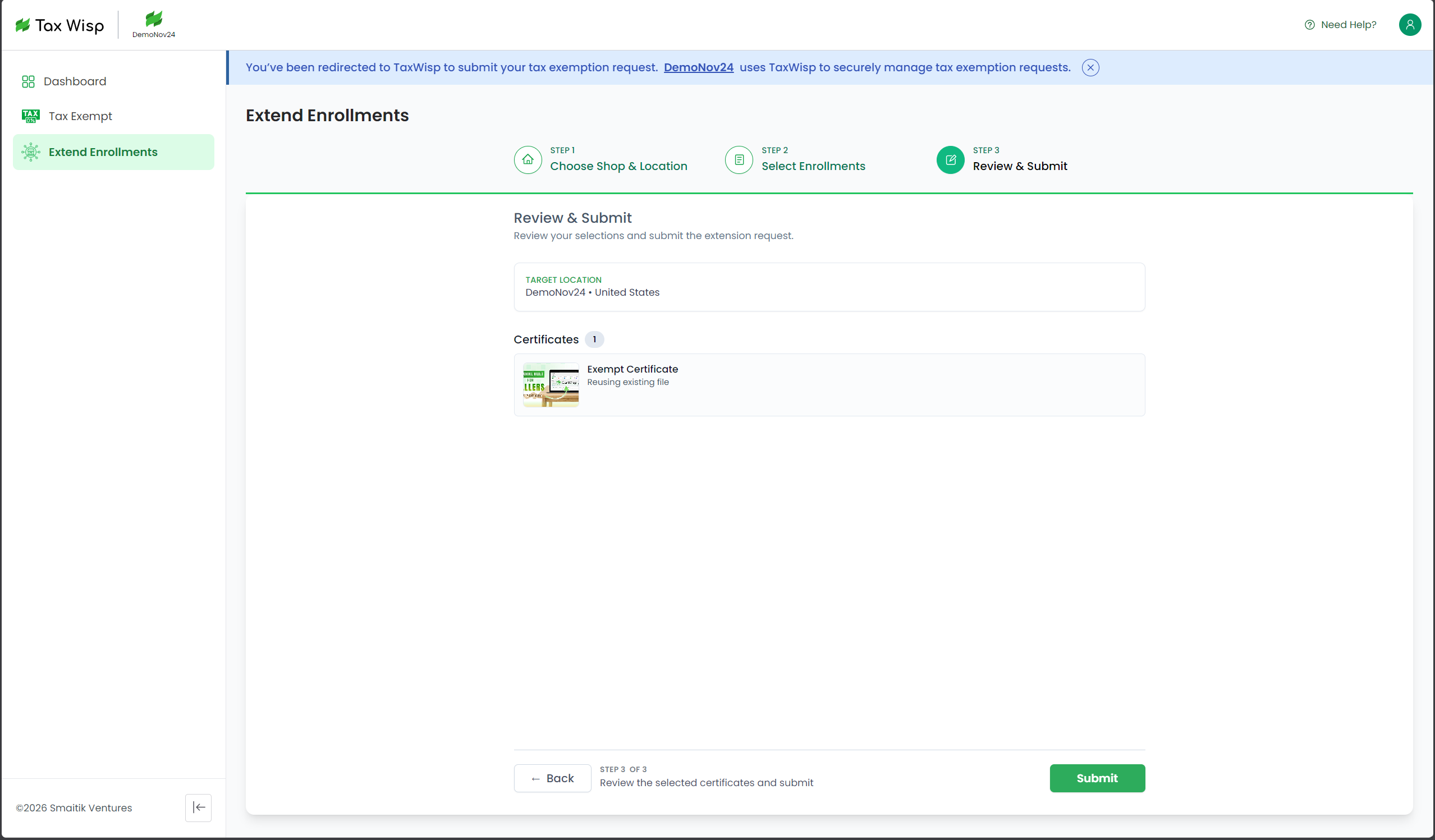
The receiving merchant will review the request according to their TaxWisp approval workflow.
What Happens After Submission?
After you submit the request:
- The selected store receives your enrollment extension request.
- Your existing exemption details are shared through TaxWisp for review.
- The merchant may approve or reject the extension request.
- You will receive a notification when the request status changes.
- Once approved, your exemption will also apply to eligible purchases from the selected store and location.
An approval from one store does not automatically apply to every TaxWisp merchant. You must select each participating store and location where you want your active exemption enrollment to be extended.
Benefits of Extend Enrollment
Extend Enrollment helps you:
- Avoid submitting the same exemption information repeatedly.
- Reuse eligible active enrollments across participating TaxWisp stores.
- Reduce repeated document uploads and form completion.
- Expand your tax-exempt purchasing access to additional merchants.
- Manage extension requests through one TaxWisp Customer Portal.
Extending an enrollment does not guarantee approval. Each merchant remains responsible for reviewing and approving exemption requests for their own store and locations.
Tax Exemption Preclaim
If the merchant has enabled the Tax Exemption Preclaim feature, you can place a tax-exempt order without first uploading your exemption certificate. Instead, you complete the exemption verification process after your order has been placed, using a secure link sent to your email.
How It Works for You
Step 1: Interact with the Preclaim Widget
Look for the "Preclaim Tax Exemption" button (or similar label) on the storefront. Clicking it opens a popup where you enter your email address and submit. No exemption certificate is required at this point.
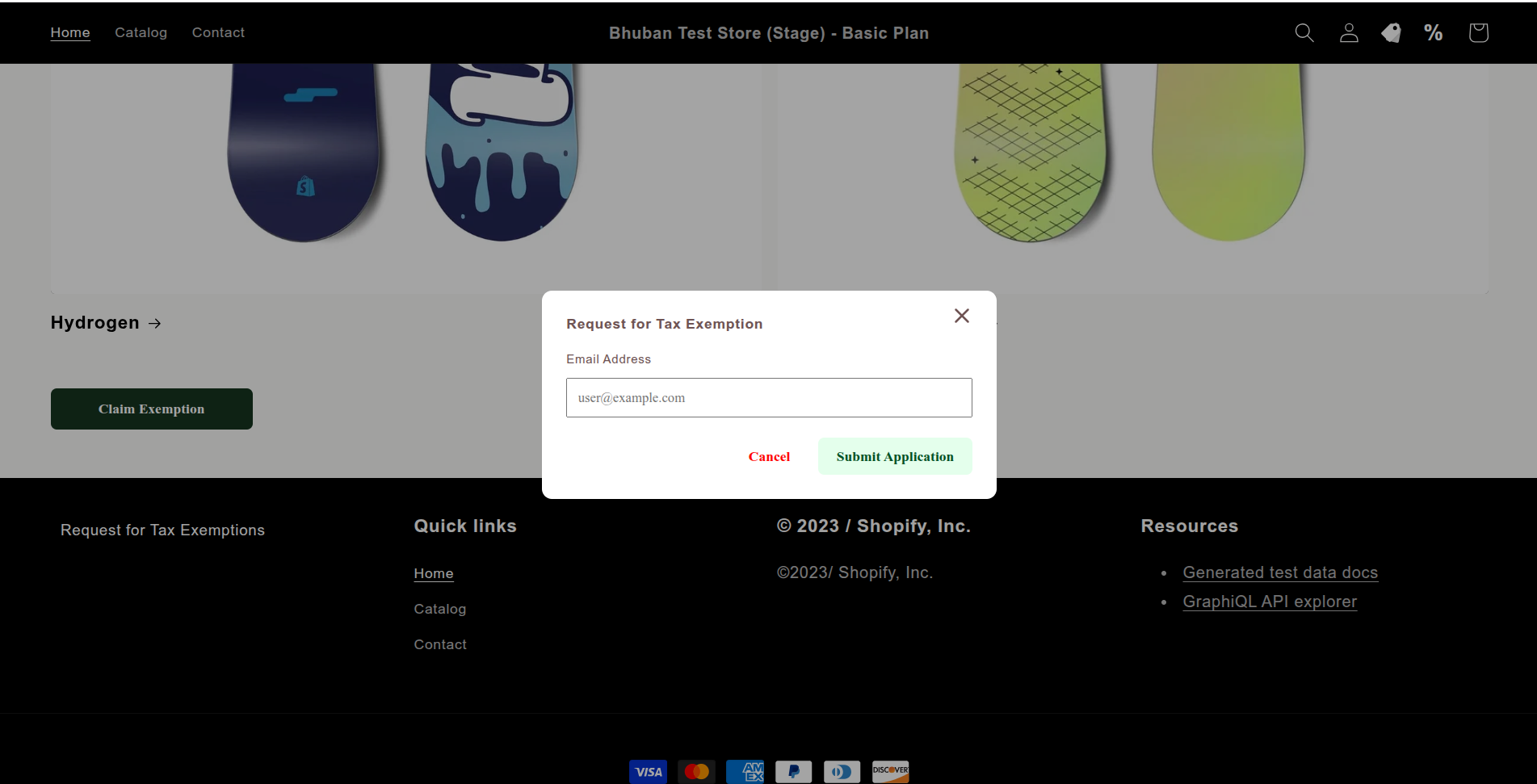
Step 2: Place Your Order
After submitting your email, continue shopping and proceed to checkout as normal. Your order is placed as a tax-exempt order, but it will be held in a Pending Verification state and will not proceed to fulfillment until your exemption is verified.
Step 3: Check Your Email for the Secure Link
Once your order is placed, TaxWisp sends an email to the address you provided containing a secure link to the TaxWisp Customer Portal.
- Open the email and click the secure link to access the Customer Portal directly — no account or password required.
- Through the portal, complete your tax exemption request by submitting your exemption details, uploading your exemption certificate, and providing any required supporting documents.
The secure link is valid for 48 hours from the time your order is placed. Complete your exemption request within this window to avoid your order being cancelled.
Even after you have submitted your exemption request, you can continue to use the same secure link (while it remains valid) to return to the Customer Portal to check your request status or make additional requests.
Step 4: Await the Store's Decision
Once you submit your request, the merchant reviews it. You will receive an email notification when a decision has been made.
TaxWisp does not automatically cancel or fulfill orders. The merchant makes the final fulfillment decision based on the verification status of your request.
Automated Notifications
You will receive email notifications for important updates regarding your tax exemption requests, including successful request submission, approvals, rejections, and revocation.
If you encounter any issues or have questions about using TaxWisp, don't hesitate to reach out to our support team directly from your TaxWisp dashboard or via email at support@taxwisp.ai.